Sample Applications
Running Postgres and connecting it
Log in with an Application Developer account
Click on Add new application, and fill in the fields with the following details.
- Application Name - Postgres
- Job Type - Dapps
- Job Run Type - Continuous
- Instance Count - 1 (by default)
- CPU Usage - 1 Core
- Component Grade - Laptop
- Memory Usage - 512 MB
- Storage Usage - 512 MB
- Network Quality - Medium
- Bandwidth limit - 10
Under Docker Configurations, fill in the docker image name as postgres
- Docker image - Postgres (Enter your public docker image)

Under Advanced Configurations, fill in the fields with the below details
- Port to expose - 5432
- Country - USA
- City - Santa Clara
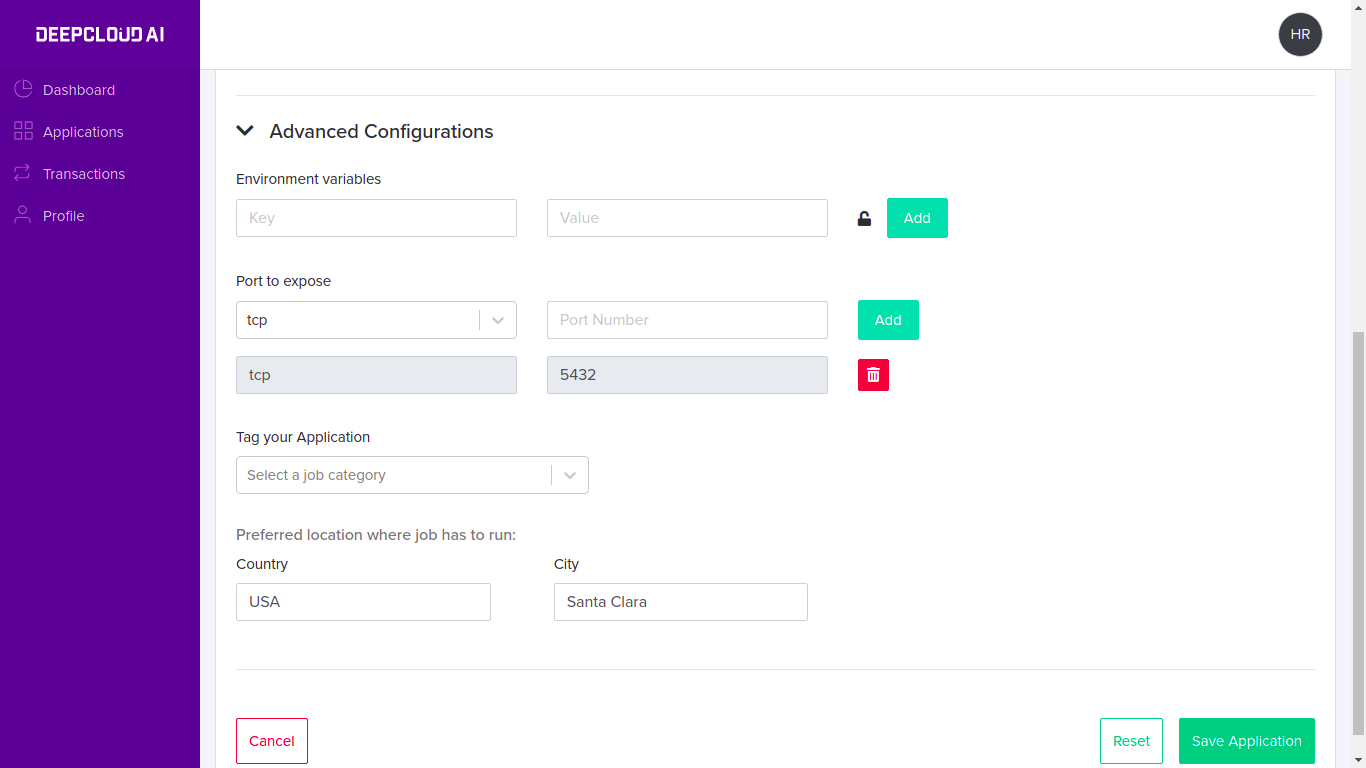
Now click on Save Application, and complete the Payment
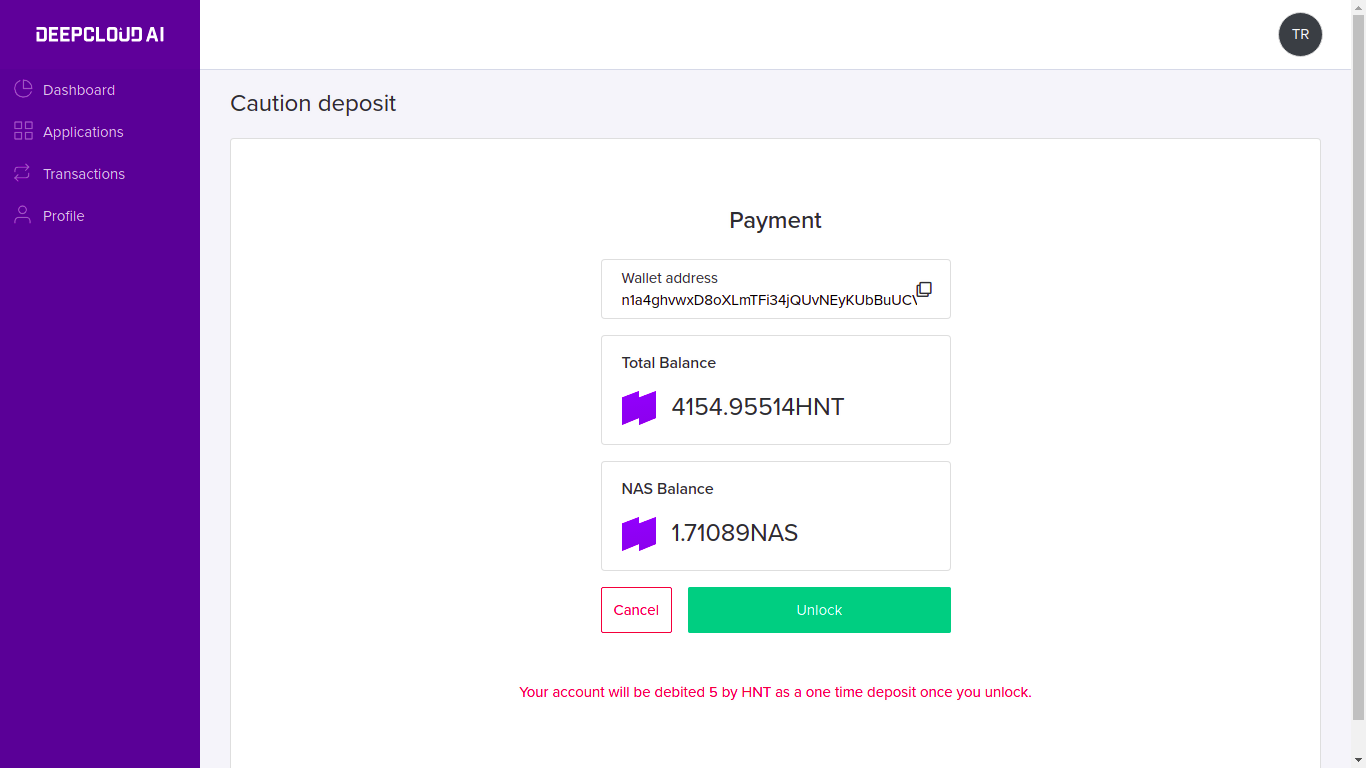
After payment, The application will start running and endpoints URL and port will be displayed (apps-l4-us3.huron-lab.com:32688)
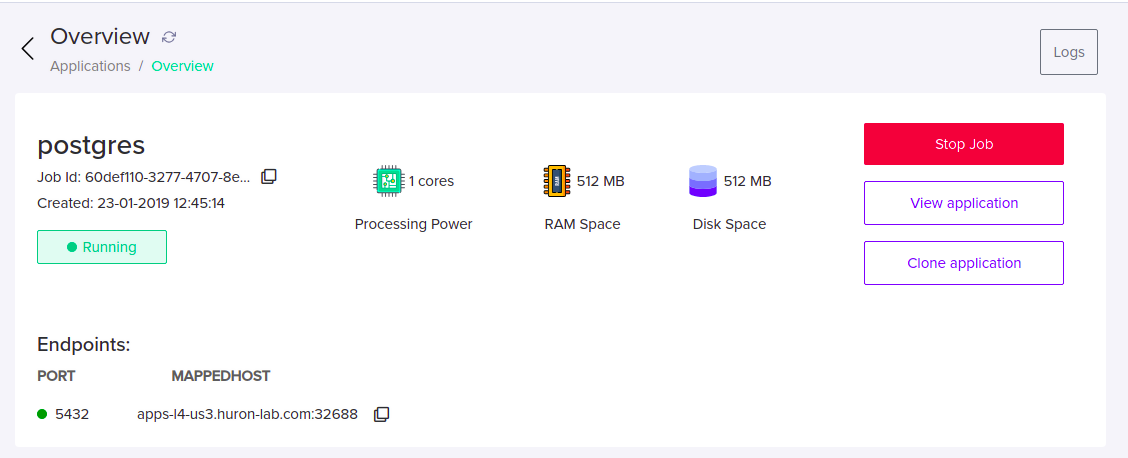
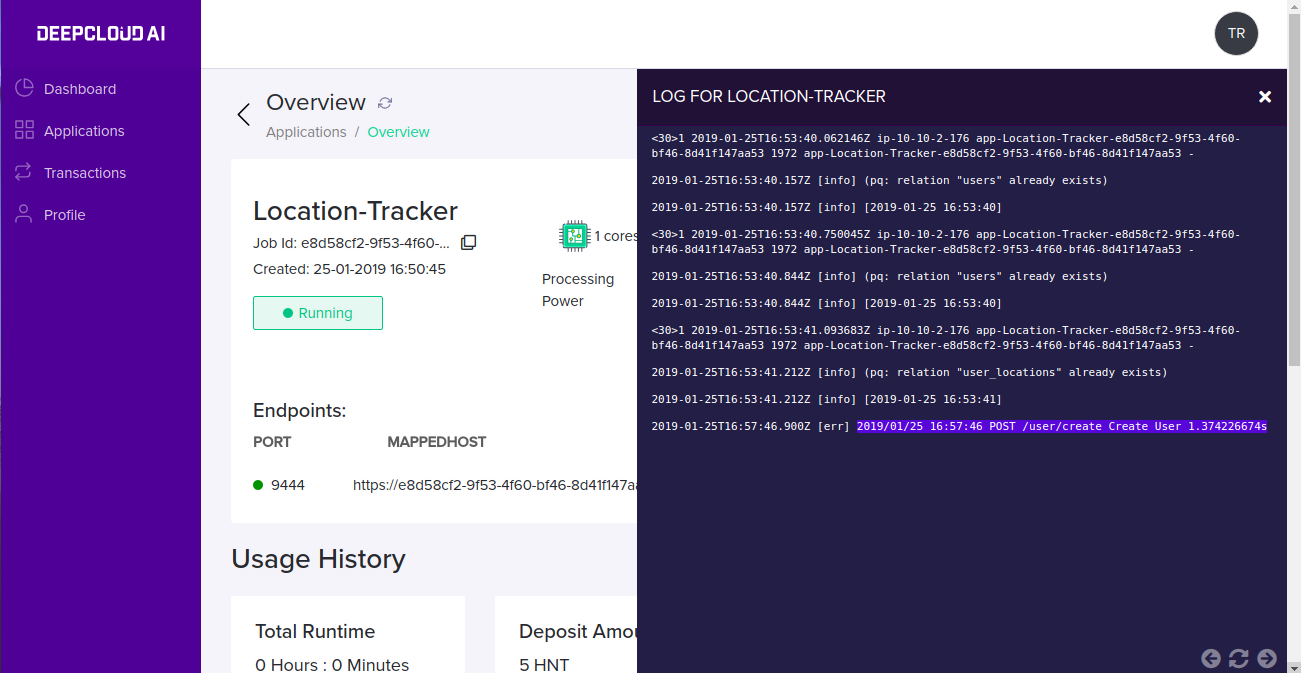
Click on logs button to check the logs for running application
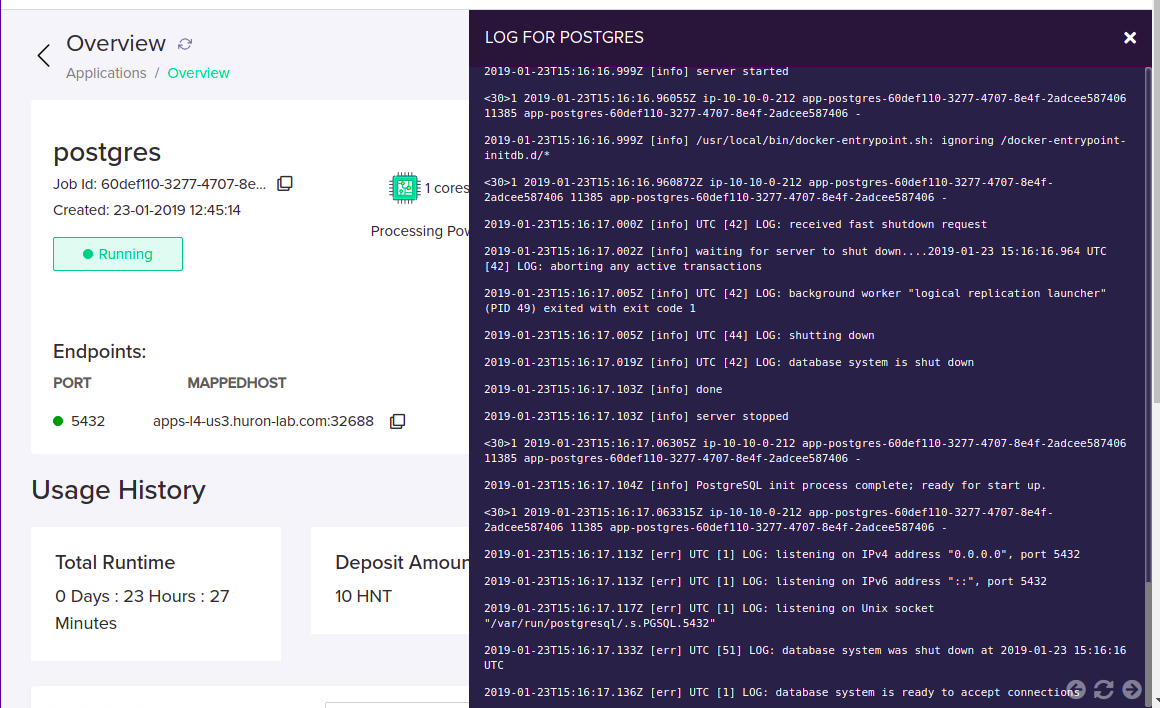
That’s it! Postgres database is up and running in Huron. Let’s connect the Postgres Database from the local system.
Enter the endpoint URL and port in host and port
psql -h apps-l4-us3.huron-lab.com -p 32688 -U postgres

Deploying REST API in Huron
Location Tracker is a REST API, which stores and retrieve user’s check-in location from PostgreSQL DB. This guide also explains how to provide private docker repository images.
Create a Postgres application in Huron with the above steps
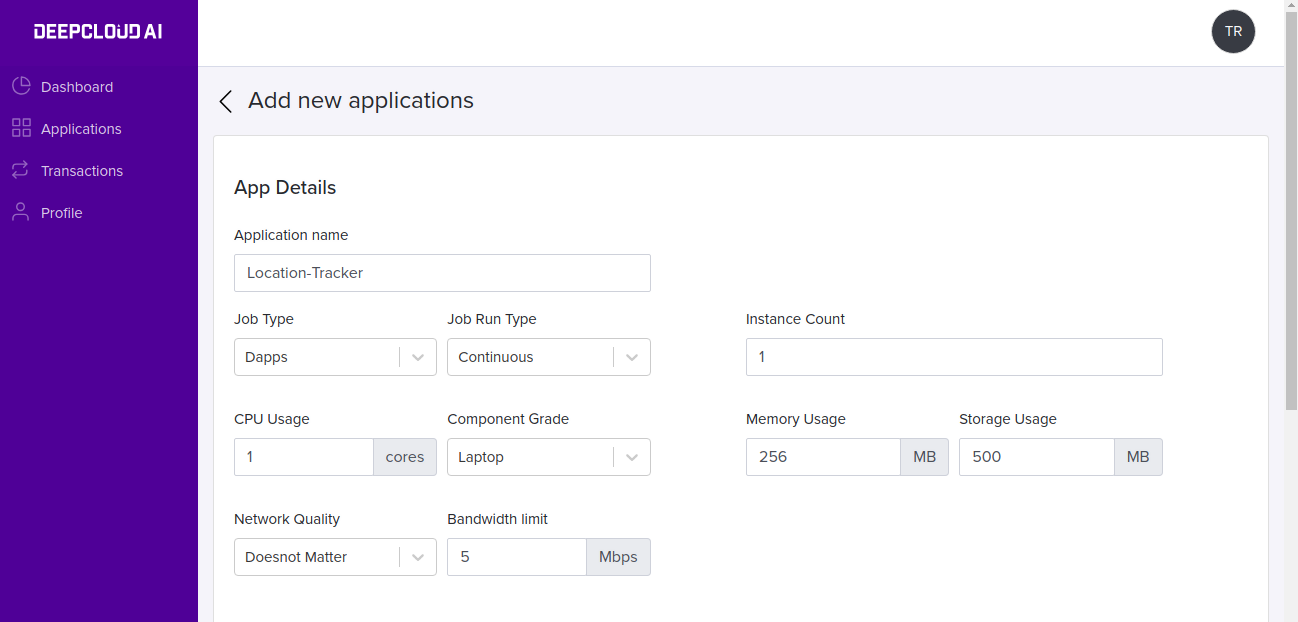
Add a new application with the following details.
- Application Name: Location-Tracker
- CPU Usage: 1
- Memory Usage: 256
- Storage Usage: 500
- Bandwidth limit: 5
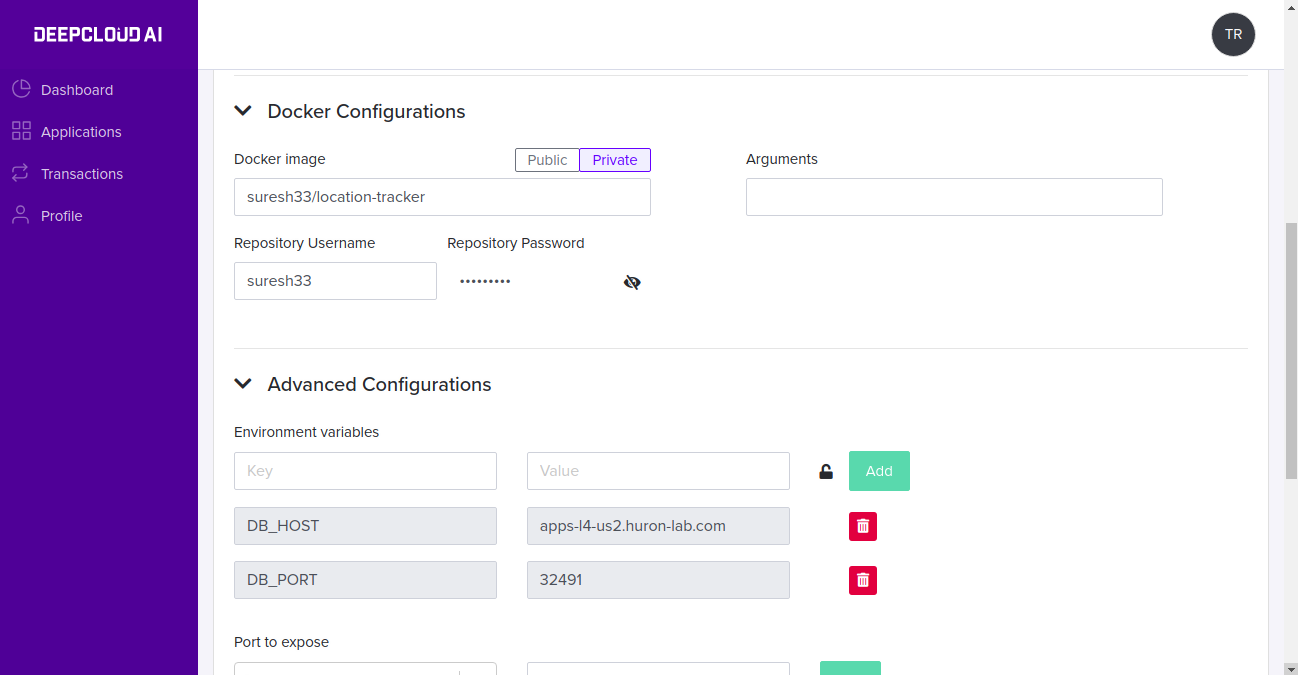
- Docker Configuration
- Docker image: suresh33/location-tracker
- Repository type: private
- Repository Username: suresh33**
- Repository Password: ****
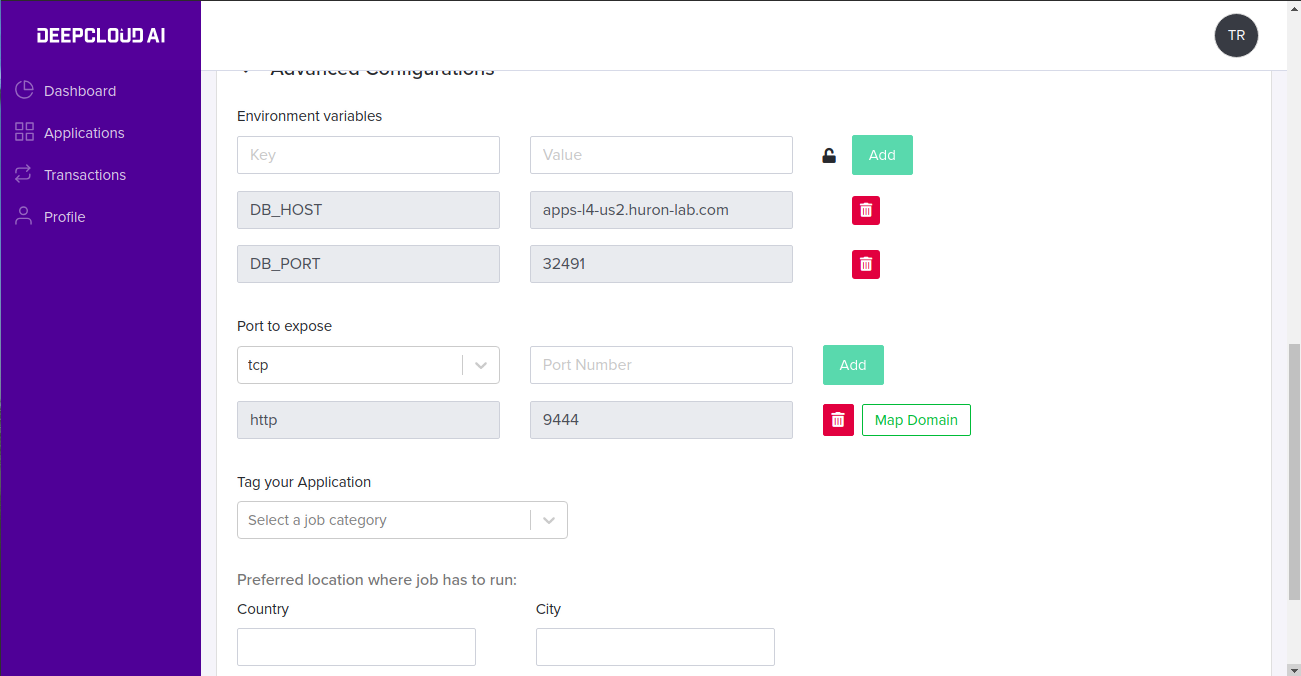
- Advanced Configuration
- Port to expose: http - 9444
Once the REST API is started running we get endpoints which is used to make rest calls,
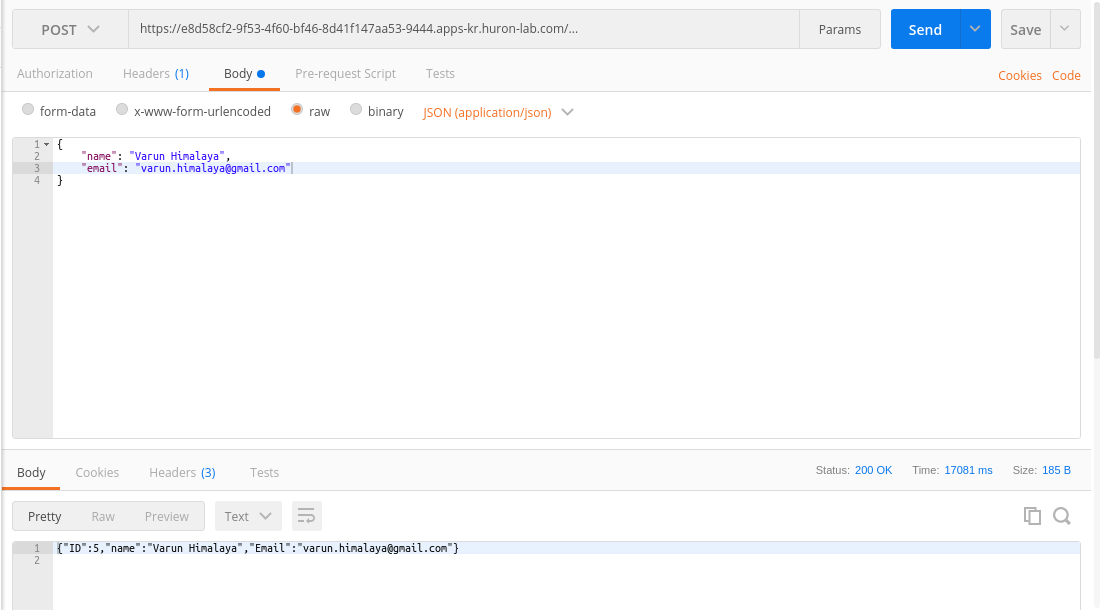
- Testing Location Tracker through Postman